

Introduction
We discussed in a previous article how to customise SharePoint’s built in Task List and briefly looked at the power of Views with Filters. In this article we will build upon that by demonstrating some advanced use of Filters.
This article assumes that you are already familiar with Views and Filters – if not please review the previous article.
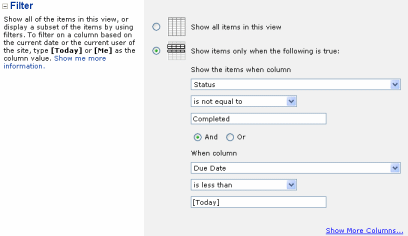
Overdue Tasks
To show a task lists Overdue tasks use the following Filter :-
And
Note – [Today] is a special marker that SharePoint understands as the current date. |
 |
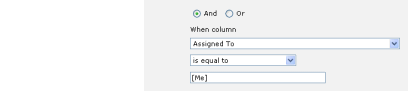
My Overdue Tasks
Add the following to the Overdue Tasks filter
Note – [Me] is a special marker that SharePoint understands as the current user. |
 |
Items added in Last 7 Days
It would be nice to be able to enter something like
- Created – is less than – [Today] – 7
in the filter, but alas its not quite that simple!
The workaround is to create a Calculated column and then filter on that column.
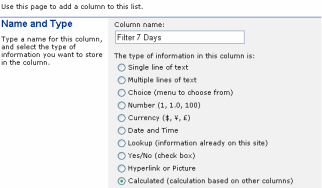
| Select Modify Settings and Columns, then Add a new columnGive the column name something like “Filter 7 Days” and select a Calculated column |
|
| Enter a suitable DescriptionIn the Formula box enter “=Created+7″Choose Date and Time format and Date OnlyClear Add to default view as we don’t want this field to appear on any of the views | 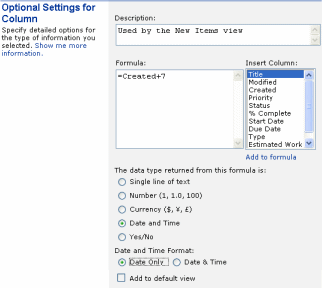 |
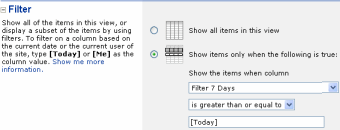
Create a new viewSetup a filter to show only :-
|
 |
Items Due in the next 7 Days
| Select Modify Settings and Columns, then Add a new columnGive the column name something like “Filter Coming Due” and select a Calculated column | 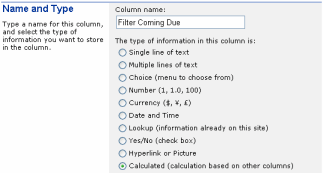 |
| Enter a suitable DescriptionIn the Formula box enter “=Due Date-7″Choose Date and Time format and Date OnlyClear Add to default view as we don’t want this field to appear on any of the views | 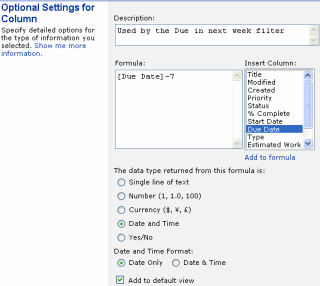 |
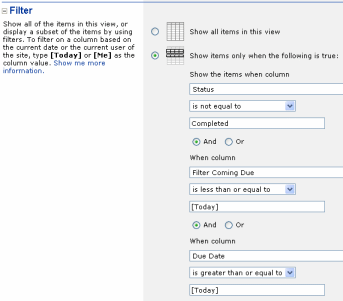
Create a new viewSetup a filter to show only :-
And
And
This will ensure that the view only displays Uncompleted items that are due in the next 7 Days but are not Overdue. |
 |
Items due in the current Calendar Month
If you need to filter for a Calendar Week/Month (rather than a rolling 7/30 day period) then this post details how
How To Use Filters in SharePoint to show items in the current Calendar Month
| Free SharePoint Calculated Column Cheat Sheet |
| a handy 3 page reference for calculated column functions and formulas. |
 |
Tags: filters, Formula, SharePoint, View


Hello, I need to create an indicator (KPI) that shows the percentage of documents in a library in SharePoint 2007 with a date of revision (custom column) has expired (less than the current date). The problem is that the possibilities to filter the indicator does not allow using [Today]. How can I fix it? Thank you very much for the help. regards
@Oscar – Looks like its not possible
http://social.msdn.microsoft.com/Forums/en-US/sharepointbi/thread/1e25d81d-5e2a-47d9-8b2f-90807f4cb935/
Thank you very much for your reply Ryan. I had already read the post that you recommend. However, I do not need to filter a KPI list, but to create an indicator based on all elements of a document library. I need to show the percentage of items in that library that have a date type property, less than the current day ([Today]). But the opportunities available to calculate the indicator does not include the use of the [Today].
The following example attempts to show what I need:
Library A
Name Review date
—- ———–
doc1 01/12/2011
doc2 01/03/2013
doc3 01/04/2013
doc4 01/05/2013
KPI List
Indicator Value
————– —–
Pending Review 25%
I don’t want [Today]. Every example I found is using [Today]. I want the format for a time! Please.
@Conax – I am afraid that SharePoint doesn’t have any Now() type function so you’re out of luck!
Thanks for the reply, Ryan.
I am not looking for the Now() type function.
What I have been longing to know is where you have placed a [Today], I actually want to specify a date with time in that box. I tried things like 25/05/2012 8:40:00, and 25/05/2012T8:40:00Z…etc but SharePoint always rejects it saying the format is invalid…
Is it actually possible to specify a date with time in the box? If I specify just a date then it accepts it. But I would like to be able to find items created after a certain time on certain date…
Much appreciated if you know how to do this.
@Conax – gotcha. Its not easy as you have to break out SharePoint Designer to hack the view and this will be undone if anyone edits it after but this may help – http://nickgrattan.wordpress.com/2008/04/24/filtering-views-by-time-and-date/
Calculating number of day’s item is open
I have an Issue list that I need to have calculate the number of days an item is open for. These are the columns I have now:
1. Date Created: Automatically enters the date the item was created.
2. Days Open: Calculated column with the following formula.
=IF(OR([Issue Status]=”In Progress”,[Issue Status]=”Not Started”,[Issue Status]=”Dispute – In Progress”),IF([Date Created]<"TODAY()",DaysOpen,Days2Close),Days2Close)
3. DaysOpen: Calculated column with the following formula.
=SUM(TODAY()-[Date Created])
4. Days2Close: Calculated column with the following formula.
=DATEDIF([Date Created],[Date Closed],"d")
All of the formulas appear to work at first, but the number of days open does not increase unless you edit and save the item (Just like your blog post states). Once the item is closed, the number of days the item was open for is correct. What can I do to make this work?
@Jim – the ‘today trick’ which you must have used to put TODAY() in a calculated column doesn’t work and never has despite it being endlessly repeated by some bloggers. See http://blog.pentalogic.net/2008/11/truth-about-using-today-in-calculated-columns/
Thanks Ryan. I forgotten about this post last year and was reminded just now by the auto emails generated by the last two replies in the post. So I thought I should come and thank you for your help. 🙂
Ryan,
Thanks for the quick reply. With your help (this post) I had figured out that using TODAY() does not work. My questions then is; “Is there a workaround?” I read the post about using javascript to update the number of days until the task due date (http://blog.pathtosharepoint.com/2008/08/25/a-countdown-for-tasks-lists/), but cannot figure out how to get apply that method to my list.
The only workaround I was able to use is the SharePoint designer workflow. Use ‘when an item is create’ ‘pause 24H/1D’ update something in the SP Item. This way your [Today] will work. You just going to have to deal with the growing version history.
Ryan,
Do you know if you’re able to create a view in a Document Library based of a specific value held in a selection choice field? I’ve tried creating a view based off the text stored in the choice field but have no luck. The choice field is getting set from a workflow I created. I’m wondering if the actual value of the choice field is a GUID behind the scenes?
Thanks,
Chris
Never mind – I figured out how to find the numeric value assigned by switching to Datasheet view. Thanks.
This is perfect. After searching through some many posts about the [TODAY] calculated column trick that doesn’t work, finally found a real solution. Thank you.
I’m trying to figure out how to filter based on a person’s branch ID.
What I’d like to be able to do is create a Branch View where columns Branch is equal to the user’s branch.
ex: Jim is in Branch 12. When he views this list, he will see all current list items that are associated with Branch 12 as his default view.
Branch is an indexed value in this list.
I can see that the individual would be able to set this up, but I’d like to set it as everyone’s default view on this list.
Any thoughts? Pointers?
So Jim would see Branch 12, but Bob would see Branch 7 – is that right? And would it matter if Bob could change something and see Jim’s branch? Finally how do you store the Person to BranchID mappings?
Is there any way to create nested filters?
What I need is to have multiple values all occur (essentially need an AND operator for them), OR if a couple other fields & values exist (but more than one).
It seems hard to believe that Sharepoint wouldn’t provide a way to filter based on multiple conditions. But I’m somewhat new to Sharepoint and struggling. Can anyone advise how exactly to modify a view in Sharepoint that will show only if:
Field A is not equal to 1, OR
Field A is not equal to 2, OR
(
Field B is equal to 8, AND
Field C is equal to 92
)
Did this make sense to anyone?
@Sebastian. The way to do complex filters such as these is using SharePoint Designer – if thats not possible/desirable you can do the condition in a calculated column then the the filter in the view.
E.g. calculated column called “SHOW RECORD” which is yes/no and formula of something like “=IF( OR(FieldA 1, OR (FieldA 2, AND(FieldB = 8, FieldC=92)),TRUE,FALSE)” then filter in the view for SHOW RECORD – IS EQUAL TO – TRUE
(Haven’t checked this so maybe typos – but will get you on the right track).