

In SharePoint 2007 there is a well known trick for opening up a list’s forms (New/View/Edit) in design mode – append ?ToolpaneView=2 onto the url – this is often used to add instructions or javascript using a Content Editor Web Part (CEWP) e.g.
- Showing a records ID on the View and Edit forms
- Setting a default duration for new SharePoint calendar events
However when I first tried to use my tried and tested shortcut in SharePoint 2010 I came a little unstuck as now the New/View/Edit forms appear in a fake popup window and modifying the URL doesn’t work.
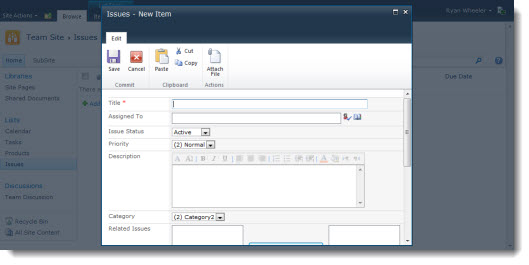
There are two ways to do this in SharePoint 2010 – and once you know where to find them they should actually make life that little bit easier.
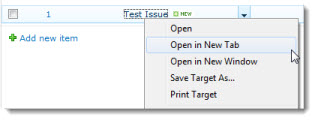
The first is to open up the form in a new window and then add ToolpaneView=2 onto the end of the URL, so
Right click on Add new Item or the lists Title field and select Open in New Tab or hold down CTRL while left clicking.
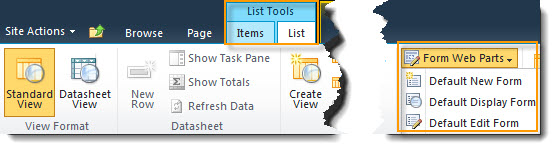
Alternatively you can do this using the new-fangled ribbon toolbar – select under List Tools the List tab, then on the right hand side of the ribbon you should see an icon for Form Web Parts which gives a menu of the different forms associated with the list that you can edit.
Tags: jQuery, SharePoint 2010, Tip


That’s really useful Ryan. I needed to do that very thing this morning on SharePoint 2010. So used your ToolPaneView=2 part and now have a happy customer.
Hi Ryan,
I tried the same thing but could not edit the fields, what could be the problem? do I need to be someone or enable some features to edit it? Thanks!
Sheree – you can’t edit the fields from this page, you have to use the list settings page – find the icon on the right of the ribbon when looking at the normal list (not form) view
I am clearly missing the point with these Form Web Parts. I just don’t know what to do with them or why and can’t find any information that is making sense to me. I’ve tried endless search queries but not winning. Under what circumstances would I use them?
On the toolpane thing, you would get the same result if in your list you changed the allitems.aspx in the URL to say newform.aspx. No right-clicking required.
@Veronique – re: missing the point with the New/Edit Forms.
So you’re clear that the new and edit form are being used whenever you add or edit a list item right? These tricks with toolpaneview=2 to edit the form are if you want to modify it and you don’t want to (or can’t) use SharePoint Designer.
For example you could
* Add a CEWP to the page and include some instructions about filling in the form
* Add a CEWP to the page to set the default duration to 1.5 hours – http://blog.pentalogic.net/2009/09/setting-default-duration-for-new-calender-events/
* Showing the ID number in the form
http://blog.pentalogic.net/2010/07/showing-the-records-id-on-the-view-and-edit-forms/
* Hiding some fields (maybe at the time of adding the record some fields aren’t applicable – they should only be filled in later)
http://dev-tips.blogspot.com/2010/05/hide-fields-of-sharepoint-calendar.html
Does this help at all?
re: editing URL rather than right clicking – yes that will work too of course, may be a little harder than right clicking though?
Follow-on question.. down a different vein…. How might I, from a workflow for a newly created list item, open the the new/current item in it’s edit form to allow the user to continue to choose and fill in fields from a Content Type Selection that is only visible on the Edit Form?
Can a workflow open a List Item and present it to the user on List Item Create?
Thanx
OK, I have a question. I have to edit the code for a form so that I can change what the tool tips in the form says. I’ve seen instructions on how to do this, but I cannot find anywhere in SharePoint Designer 2010 or the site itself to do this.
I thought this would allow me to do it, but when I use this to edit the form, both edit page, and edit in designer are disabled. If I go into designer, find the list that is connected to the form and click on dispform, editform,aspx, etc it just shows me a blank page with 3 input areas that have no relation to the form I’m actually working on, and I can’t find the actual form in designer itself.
Any suggestions? Please.
To get around editing the URL of the SP2010 Dialog box View/new/edit pages – go to List Setting, Advanced Settings and switch off “Launch Forms in Dialog” (bottom of the page).
This now makes the View/New/Edit pages open as normal web-pages which you can edit (add CEWP’s etc.) to your hearts content.
Then switch the Dialogs back on and – Voila! All fixed.