

There are many instances where you might want to view a set of SharePoint list records which have been filtered on a comparison between values in 2 columns. You might want to view a list of all sales reps who have failed to hit their targets: Actual SalesCredit Limit, or employees who have not used their full vacation entitlement: Vacation Entitlement>Days taken.
A customer recently contacted me with just this type of question :-
They use a SharePoint list to keep track of orders waiting to be manufactured and delivered – so amongst other fields they have Scheduled Delivery Date (which they have promised to a customer) and the Estimated Delivery Date which is kept up to date with the latest estimate. Most of the time the two agree but sometimes for various reasons the delivery date slips.
They have been using Reminder to send out automated emails for upcoming orders and ones that had just been missed but they wanted to setup a view that would show only orders where the Estimated delivery date was later than the date they had told the customer. Account managers could then use this list to keep customers up to date – “There is a delay on that order we have scheduled for you for next month, we estimate it will be ready on the 17th”
Sounded pretty simple to me and I confidently told them how they could do it – just setup a new view with a filter to only show those records where Scheduled Delivery Date is greater than Estimated Delivery Date.
But of course you can’t do this because in SharePoint view filters you can only use one field per filter expression – the other operand has to be fixed (like the string “27th March 2010”) and you get this helpful error message :-
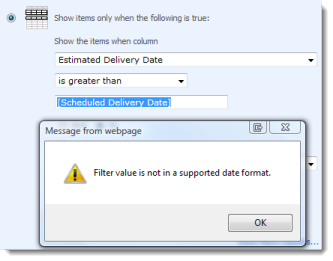
“Filter value is not in a supported date format” or “Fitler Value is not a valid Number”
This will happen any time you are trying to setup a SharePoint view filter to compare one field to another.
The workaround is to use a calculated column to compare the field – then filter on the comparison.
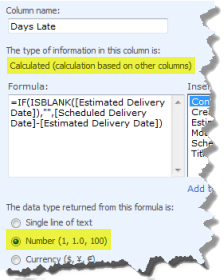
| So in our example we setup a new Calculated column called “Days Late”
Set its type to be Numeric and the formula to be =IF(ISBLANK([Estimated Delivery Date]) ,
"",
[Scheduled Delivery Date]-[Estimated Delivery Date])
The key part of the formula is the [Scheduled Delivery Date]-[Estimated Delivery Date]. The IF and ISBLANK stop the calculation being performed for empty date values – otherwise SharePoint will assume 1st Jan 1900 and show values like 40,000 days early! (If you copy this formula into your calcualted column and get “The formula contains a syntax error or is not supported.” errors check that you haven’t got any extra spaces anywhere and that the field names are correct) So the result of this formula will be the number of days its going to be late – if its on time then it will be a zero and if its going to be early its a positive number of days (aka negative days late!) |
 |
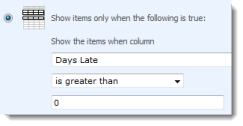
| The next step is to setup a new view for Delayed Orders and set the filter to only show items when the Days Late column is greater than 0.
You may also want to filter out those deliveries that have already happened – you can do this by adding Status is not equal to completed or “Actual Delivery date is ” or whatever works with our data. |
 |
Automated Emails each time a delivery date slips
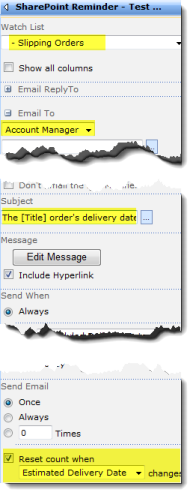
For a bonus point I told them how they could setup a Reminder Web Part that would watch this view and send out automated emails to the account manager (or even directly to the customer) when an orders delivery date slips – you can even set it up so that if date slips again another email is sent.
Tips
|
 |
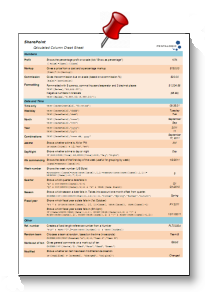
| Free SharePoint Calculated Column Cheat Sheet |
| a handy 3 page reference for calculated column functions and formulas. |
 |
Tags: Calculated Columns, filters


I need help with a dynamic filter on a list. I have a list of facilities that contains a day of week column. Each facility is in the list multiple times to report information by day (Building 1 Monday, Building 1 Tuesday, Building 2 Monday, etc). What I would like is for the view to figure out what day of the week Today is, then filter on that day of week column in my list. The day of week column can be either a text column or a numeric column if either makes the task simpler. I just can’t figure out how to do it.
hello,
thank you so much for the fantastic blog and this very useful post,
Best regards