

A customer recently contacted me with an interesting question.
They were using a SharePoint task list to help schedule jobs for field engineers but rather than have a Start Date and End Date field they wanted to have a Start Date and Duration field and automatically work out the End Date.
So End Date = Start Date + Duration
They were then planning to display this using Planner in the By Category view which is idea for resource booking as it makes it easy to see when a resource is booked or free (SharePoints built in gantt chart can’t do this swimlane style of view and doesn’t support using calculated columns).
Now this is easy to do if the Duration is specified in days – in fact you just use the equation above – but what if Duration is in hours or minutes?
First port of call is this page from Microsoft showing examples of common date time formula you can use in SharePoint calculated columns hmmm, adding days OK… adding months Check… adding years OK too….but nothing about hours. Back to the drawing board.
The key bit of knowledge is that SharePoint stores all date/time values internally as the number of days since Jan 1st, 1900. So the number 100.5 in a date/time field is 100 days and 12 hours from 1st Jan 1900 at 00:00
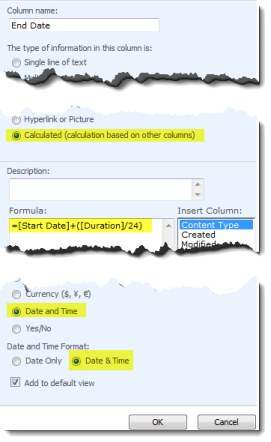
| Armed with this we get the following formula (where Duration is in hours)
=[Start Date]+([Duration]/24) So what’s happening here? ([Duration]/24) turns the number of hours in Duration to fractions of a day (e.g. 1 hr is 0.0416 of a day) Then we add that number to the Start Date and finally as our calculated column is defined as a date/time field SharePoint is turning the number (e.g. 40,296.50) back into a readable date/time value. Job done! Tips
Further reading |
 |
| Free SharePoint Calculated Column Cheat Sheet |
| a handy 3 page reference for calculated column functions and formulas. |
 |
Tags: Calculated Columns, Formula, SharePoint, Tip


Thanks Ryan. Can never have enough calculated formulas we can just copy and paste, keep ’em coming.
Hello Ryan
We were using your above examples (see specific code below) and everthing was working great. We have come back to a new year, 2011 and all of a sudden we are getting ?NAME error in the end: field (field which added 30 mins on).
The year change may be a ‘red herring’, is there a system setting/change which could affect this solution?
Incidentally the same calculation still works ok in Excel?
Thanks
Bill
Fields:
Start date: (date and time input) 17/01/2011
Slot: (limited choice input) ‘Appointment Slot 1 – 09:30’
Start: (calculated date and time – =TEXT([Start Date:],”dd/mm/yyyy”)&RIGHT([Appointment Slot],6) 17/01/2011 09:30
End: (calculated date and time – =[Start]+(1/48) was returning 17/01/2011 10:00 now ?NAME
Great Post!
I’ve used your sample but for minutes:
Duration/1440
Working perfect!
Very-very-very good tip!!! thank you!
Bonus question: now that you have a calculated column that is date/time – can you create a “Calendar” view using it?
(I keep getting “Unexpected error” – (even though resulting column values are type “date & time” and have normal values…)
(Just me?)
in SharePoint date and time how to increase the minute 1,2,3 like that bcas .The default Datetimecontrol of SharePoint is increment of 5 min. how can decrease or increase?
@Anand – try this – http://datetimebyminute.codeplex.com/
How can I use this formula to add 5.5 hours to one of the date and time field.
Sreenivas – please re-read the article. The forumla is =[Date Field]+([Duration]/24) where duration is in hours. So it’s as simple as +(5.5/24)
I need help making a forumla for Sharepoint list.
Column name Time of Entry
Data is D/M/YYYY HH:MM:SS AM
I need the date info to be removed, the time to remain the same however its currently showing the AM/PM incorrectly so need to add 12 hrs in order for this to change.
Any help will be aprecitated.